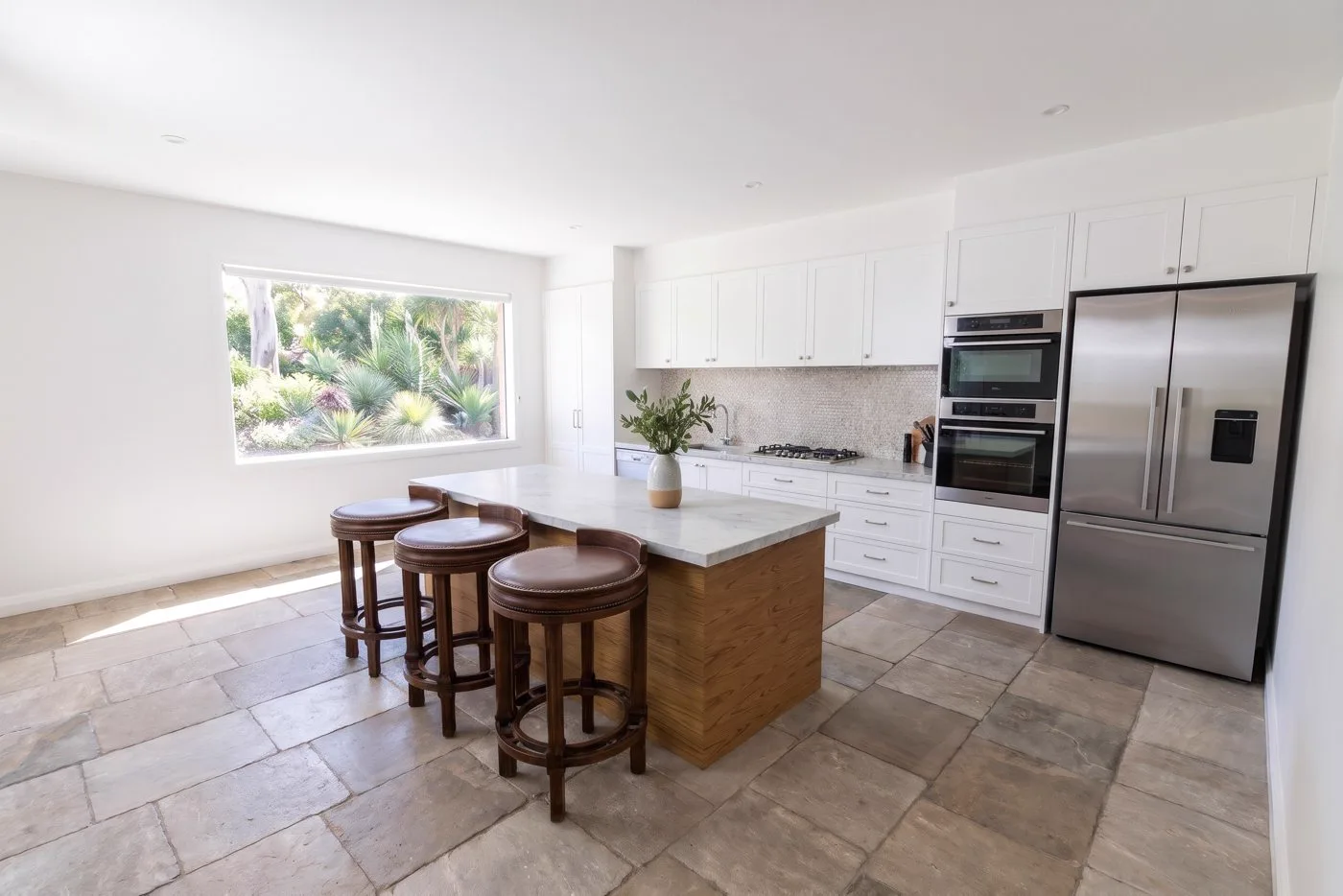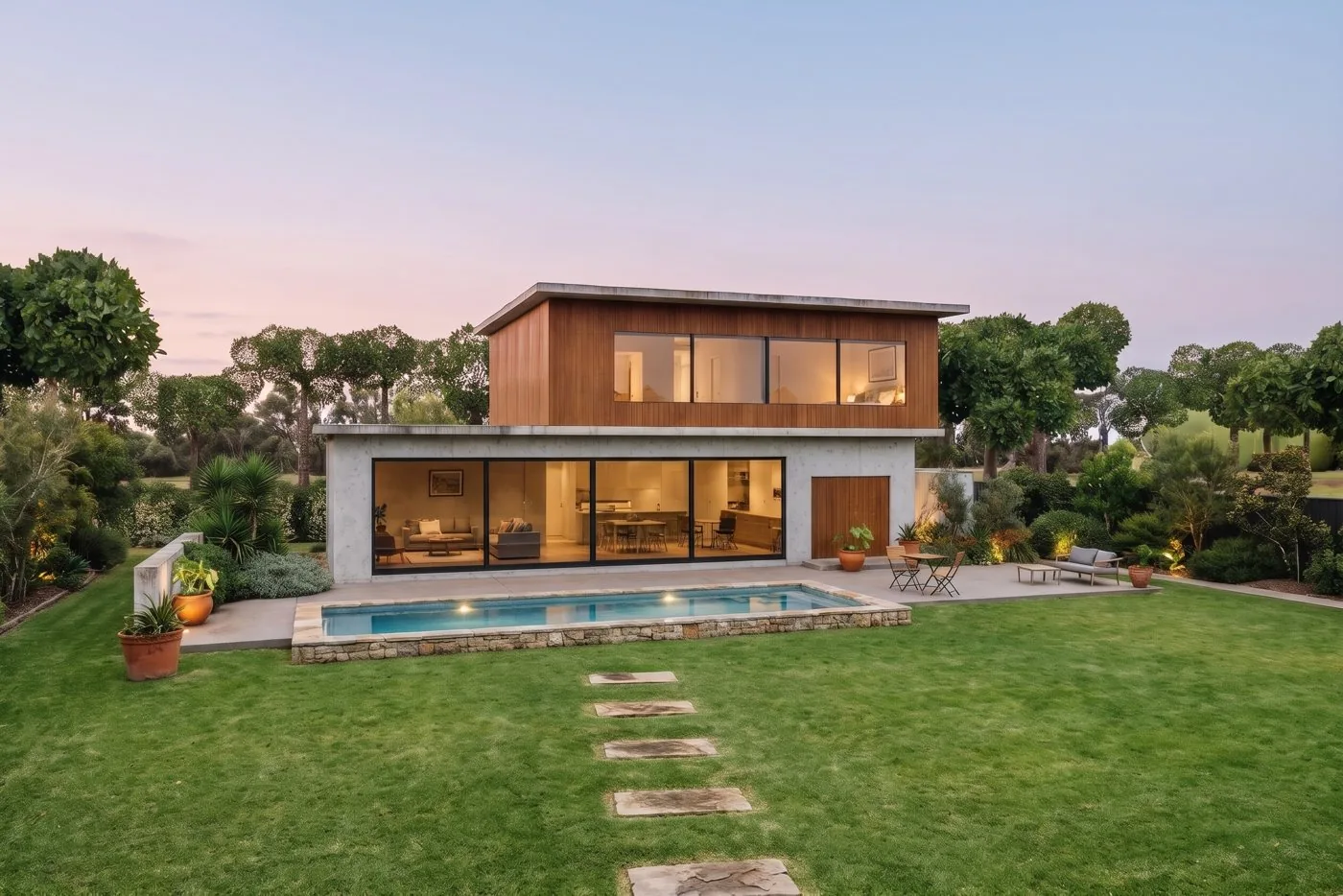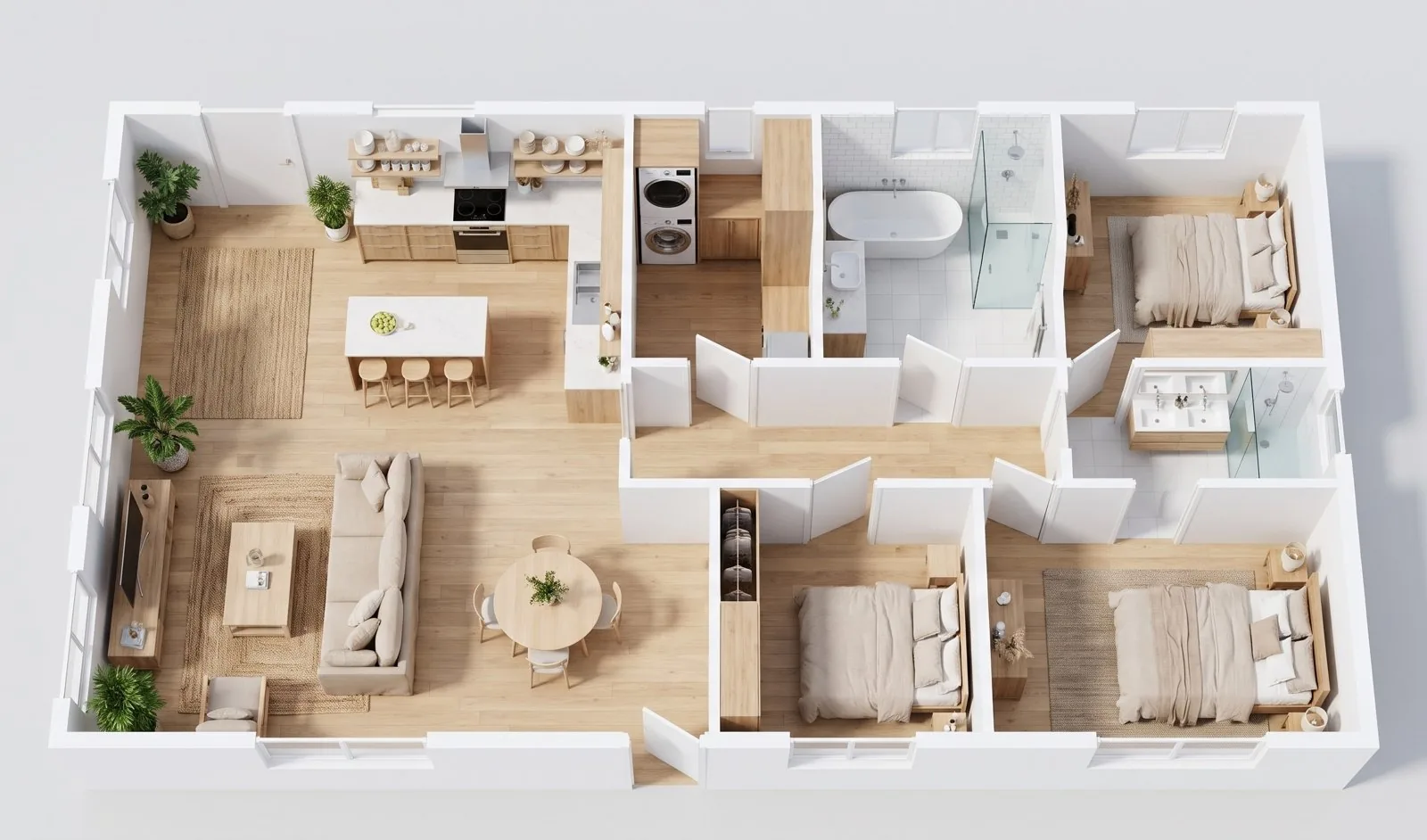
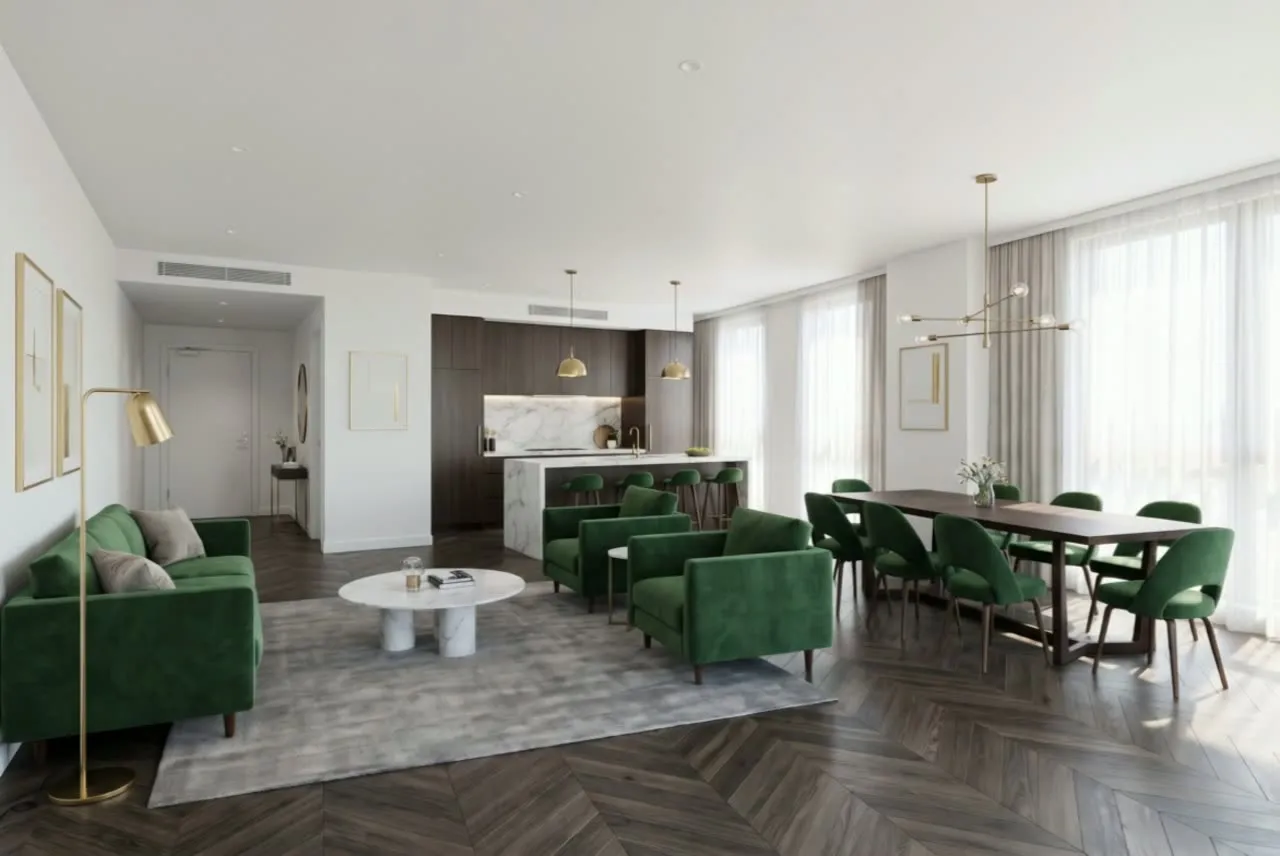
A short video stops the scroll in a way a still photo rarely does. Facebook, Instagram Reels and TikTok all push video first. But most listings only have photos, and booking a video shoot for every home is not realistic. The good news: one strong photo is enough to make a short, smooth video. The trick is choosing the right camera move for the right photo.
All the videos below were made with Studio AI, each from a single listing photo.
Inside: walk into the room
Walk into the room feels like a home tour. The camera moves slowly forward at eye level and turns a little to one side, the way a visitor looks around.
Best for: living rooms, open plan kitchens and any room with depth. Use a wide photo taken from the doorway or a corner.
Other moves for interiors:
- Push in: a gentle move forward. Works on almost any photo, inside or out.
- Pull back: starts close and moves back to show the whole space.
- Lights on: the camera stays still while the room's own lights switch on one by one as evening comes.
- Cozy: the fire flickers and curtains move a little. Good for homestays and rentals.
Side to side: slide
The camera moves slowly sideways across the room. Things close to the camera move faster than things far away, which gives the photo real depth.
Best for: kitchens with a long bench, bathrooms, living rooms and front facades. It looks calm and elegant.
Outside: drone moves
Two drone moves are made for exteriors:
- Drone rise: the camera lifts up and back to show the home and what is around it.
- Drone fly-in: the camera starts far away and flies toward the front of the home. A great first shot for a video.
Best for: homes with a pool, a big garden, a view or a good location. A photo taken from a little higher, such as from a drone or a high pole, gives the best result.
Also for exteriors: Orbit (a slow arc around the scene), Tilt up (from the garden up to the roofline and sky) and Living scene (the camera stays still while clouds drift, leaves move and water ripples).
Time passing: timelapse and day to night
These moves keep the camera still and let time pass instead:
- Timelapse: clouds race across the sky and the sunlight and shadows move across the home. It stays daytime.
- Day → night: the sky turns to a deep blue dusk and the home's lights switch on one by one.
- Afternoon sun: warm golden light grows and sunbeams come through the windows.
- Season change: the garden moves through winter, spring, summer and autumn while the home stays the same.
Tip for day to night: first make a twilight version of the photo with Studio AI, then use the daytime photo as the start frame and the twilight photo as the end frame. The video then moves from one to the other.
Start frame and end frame: show a change
Every video starts from a start frame, the photo you choose. You can also add an end frame, and the video moves smoothly from the first photo to the second. It costs the same.
Use it to show:
- a day photo turning into its twilight version;
- an empty room filling with virtual staging;
- an old room turning into its virtual renovation;
- a garden or a build before and after.
If the video shows a change that has not happened yet, such as staging or a renovation idea, say so in the post. Buyers should always know what is real.
Quick guide: which move for which photo
| Photo | Good camera moves |
|---|---|
| Living room, open plan | Walk into the room, Push in, Lights on |
| Kitchen, bathroom | Slide, Push in |
| Bedroom, homestay | Cozy, Afternoon sun, Push in |
| Front of the home | Drone fly-in, Tilt up, Day → night |
| Home with pool or garden | Drone rise, Orbit, Living scene, Season change |
| Apartment with a view | Day → night, Timelapse |
| Before and after | Start frame + end frame |
Tips for a good video
- Start from your best photo. The video can only be as sharp and well lit as the photo it comes from. Edit the photo first, then make the video.
- Choose one move per clip. A single, slow, clear move looks more professional than a busy one.
- Keep it short. 5 to 8 seconds per clip is plenty for social media.
- Match the shape to the platform. 9:16 for Reels, TikTok and Stories, 16:9 for YouTube and your website.
- Watch it to the end before you post. Check the edges, windows and straight lines. If something moves in a strange way, run it again.
- Turn sound on or off. Studio AI can add soft room sound and calm music, with no voice. Turn it off if you will add your own music.
From clips to a full listing video
One clip is great for a quick post. When you want a full listing video with several photos, music, text and a voice-over, Studio AI's Social Clip and Slideshow tools put it together for you. See them in the Studio AI overview, or make a full set of marketing with the listing bundle.
Try it on your next listing
Studio AI is launching soon, and new accounts get free credits to try it. Pick the best living room photo and the front exterior from your next listing, make one short clip of each, and see which one gets more views.